What Can You Do With an Android Portable Touchscreen Display?
What Can You Do With an Android Portable Touchscreen Display?
RSXD
11th November 2026
An Android portable touchscreen display can serve as a movable screen for video calls, training, presentations, product demonstrations and everyday media. With the right software, it can also become a shared information station. The useful question is which task you want to move from a small device or fixed screen, and what that task needs to work reliably.
Think about a trainer changing rooms, a salesperson explaining a product beside the actual item, or a team holding a short review away from its usual meeting space. In each case, portability has a purpose. Buying a screen first and looking for uses afterward is a less convincing plan.
Understand what kind of portable display you are buying
For this article, an Android portable touchscreen display means a movable display with an Android computer built in. It is different from choosing a screen solely as an external monitor for a laptop. Start with the applications you want to run on the display itself; then check whether you also need to share content from another device.
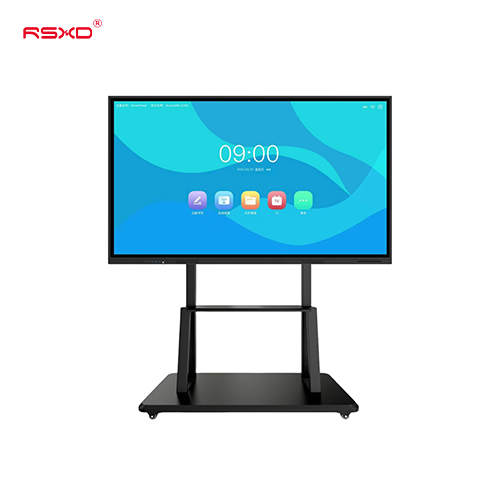
A portable smart display offers a useful configuration example. RSXD’s listed model combines Android 12.0, an eight-core processor, a built-in camera, wireless projection, a battery, hidden wheels and an adjustable screen angle. These features describe that configuration, rather than every display sold under a similar name.
Before comparing prices, write down who will use the screen, where it will travel and whether someone will supervise it. A shared office device and an unattended customer station need different operating arrangements.
Bring video conversations into the right room
Use a movable screen for a supplier discussion beside samples, a remote consultation in a showroom or a small team meeting. Position it so participants can see the other person without crowding around a phone. With a camera-equipped model, plan the camera’s height and framing as carefully as the screen position.
Run the actual calling application during evaluation. Check sign-in, microphone pickup, speaker volume and whether the remote participant can see what you intend to show. A built-in camera alone does not settle those questions. If the conversation involves confidential drawings or customer details, choose an appropriate space and an account approved for that work.
Keep a simple fallback: a telephone number, a second device or a way to continue the conversation without video. The objective is a usable discussion, not a demonstration that every session must use the screen.
Make training easier to follow at the point of work
A portable display is worth considering when the lesson belongs beside a workstation, demonstration table or showroom exhibit. Prepare a short sequence: show the relevant step, pause for a demonstration and let the learner repeat it. Keep instructions readable from the positions people will actually occupy.
For a proposed training setup, test the course platform, video files and any touch exercises before the session. If you need annotation, document editing or progress tracking, verify those functions in the chosen application. Do not treat the presence of a touchscreen as a promise that training software includes them.
When the main requirement is sustained group teaching or collaborative writing, compare the setup with an interactive flat panel display. That comparison helps decide whether movement between rooms matters more than a dedicated group workspace. Choose around the lesson, rather than making every training format fit the same device.
Present ideas without passing around a small screen
For sales conversations and design reviews, use the display to keep the same document, image or presentation in view. A furniture consultant might discuss a room plan beside material samples. A project team could review a proposed layout before returning to individual workstations. These are planning examples, not claims about completed customer projects.
Wireless projection provides another route for presenting content. Test the exact phone or laptop, receiving software and network you will use. Check reconnecting after sleep, switching presenters and the visibility of private notifications. If you require a cable connection, verify the port’s input function and touch behavior separately before ordering.
Sharing a picture and controlling the original application are different requirements. During the demonstration, ask someone to perform the actual task from start to finish. A successful connection screen is only the beginning of that test.
Put useful content beside the customer or visitor
Consider a short product explanation, a searchable catalog or a service introduction. Give the viewer a clear starting point and a practical next step: compare two options, watch a demonstration or ask a staff member for help. Keep the content focused enough to use while standing.
For a station that stays in one public location, compare a movable screen with an interactive digital signage kiosk. The decision should follow the layout and operating model. A requirement to move between consultation areas is different from a requirement to maintain a permanent visitor-information point.
Treat booking, stock lookup and payment as separate software projects. If one is essential, include the entire workflow in the sample test, including errors and recovery. Showing a form is not the same acceptance task as submitting it to a live business system.
Use media and shared access deliberately
Between scheduled tasks, you could use a compatible player for approved videos, presentation material or learning content. Select files for the audience and setting. Check playback rights, sound levels and the procedure for returning to the main business task afterward.
For shared use, avoid building the routine around one employee’s personal account. Decide who installs applications, changes settings and removes session information. Where an unattended station needs restricted access, ask the integrator to demonstrate the proposed management configuration. Android lock task mode relies on applications allowlisted by a device policy controller; its availability in a finished deployment needs confirmation.
The official app compatibility guidance also matters during selection: application availability can depend on location, screen size and Android version. Test the named application on the proposed device instead of accepting “runs Android” as the entire compatibility check.
Check the complete working setup
Bring a written acceptance list to the sample demonstration. Include the conditions that are easy to miss in a brief showroom viewing.
Requirement
What to demonstrate
Movement
The actual route, doorways, floor surface and final parking position
Viewing and touch
The intended user’s reach, viewing angle and main on-screen controls
Power
The complete work sequence at the intended settings, plus a charging routine
Applications
Installation, login, normal operation, errors and recovery
Handover
A second user starting a clean session without the first user’s information
Set a runtime requirement in hours for your own workload. Include the apps and settings you expect to use; do not convert battery capacity into a guaranteed working shift. Plan a charging location that staff can use consistently.
RSXD records customization requirements in a needs confirmation form and supports sample delivery and prototype testing. Use that process to agree on the functions the sample must demonstrate. A short, specific acceptance list is more useful than asking whether the screen can do “everything.”
Frequently asked questions
Can it work without a laptop?
Yes, if the required task runs in a compatible Android application on the display. A laptop may still be needed for software that is not available or suitable on that configuration.
Will every Android application work?
No universal compatibility should be assumed. Verify the application, installation method, account requirements and full workflow on the proposed model before purchase.
Can I use it as a laptop touchscreen monitor?
Check that specific requirement separately. Confirm video input, supported connection methods and whether touch commands can return to the laptop. Wireless sharing alone does not answer all three questions.
How long will it run on battery?
Specify the runtime you need and test it with your real workload. Agree on the settings and acceptance conditions rather than relying on capacity alone.
What should I send when requesting a recommendation?
Include the main task, applications, expected users, movement route, network conditions and required runtime. For a proposed deployment, discuss your display configuration with RSXD and ask which functions should be demonstrated on the sample.
We support multiple installation methods, including wall-mounted, floor-standing, vehicle-mounted, and embedded. Different installation methods correspond to different scenarios:
* Wall-mounted: Suitable for building elevators and shopping mall walls;
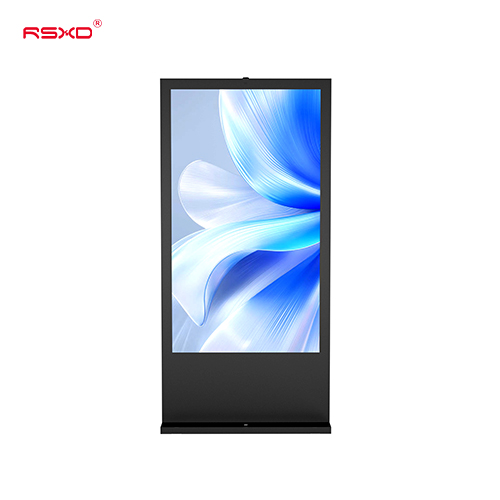
* Floor-standing: Suitable for store lobbies and showroom entrances;
* Vehicle-mounted: Suitable for public transportation scenarios such as buses and subways;
* Embedded: Can be integrated into self-service terminals, smart cabinets, and other devices.
Currently, we offer two mainstream touch methods:
* Capacitive touch: Supports multi-touch, highly sensitive operation, suitable for lightweight interactive scenarios (such as information kiosks);
* Infrared touch: Strong anti-interference, waterproof and scratch-resistant, more durable, suitable for high-frequency touch and complex environments (such as self-service terminals in public places).
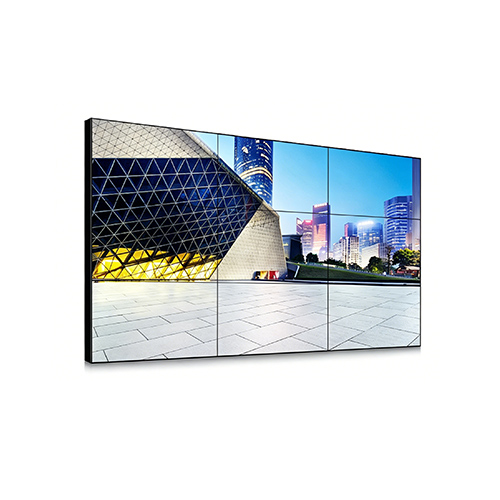
The physical gap of a standard video wall is 0.88mm-3.5mm (slightly different for different models); currently, we offer micro-gap video walls (gap ≤ 0.88mm), visually approaching a "seamless" effect, suitable for monitoring centers, large exhibition hall screens, and other scenarios requiring high display continuity.
The vehicle-mounted advertising machine adopts a shock-resistant and reinforced design, passing vehicle environment vibration tests; it also supports a wide operating temperature range of -20℃ to 60℃, adapting to extreme environments such as high temperatures inside vehicles in summer and low temperatures in winter, and can operate stably in complex road conditions such as buses and trucks.
It supports a variety of external devices, including printers, barcode scanners, ID card readers, cameras, etc.; the equipment has reserved interfaces such as USB and RS232, which can be connected to external devices according to actual needs, suitable for interactive scenarios such as self-service checkout and government affairs inquiries.
Split-screen display is supported. The number of split screens varies depending on the model: the basic model supports 2-4 split screens (such as main video + image + text), while the high-end model supports more than 16 split screens. Customizable split-screen ratios are also supported to meet the needs of displaying multiple contents simultaneously.
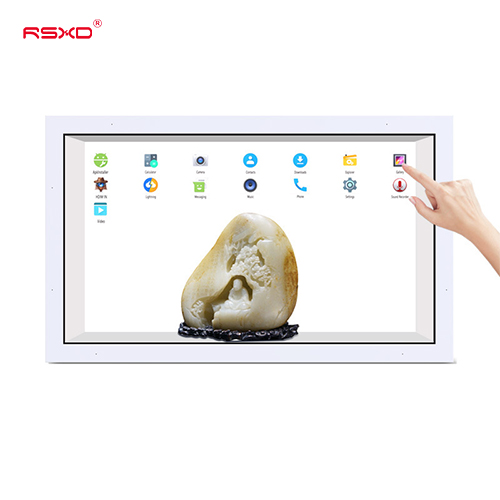
The transparent LCD display combines physical product exhibition with digital content, allowing customers to view the real item inside the cabinet while reading product information, brand stories, technical details, or promotional videos on the transparent screen.
This transparent display creates a layered visual effect. Products remain visible behind the screen, while images, text, videos, and animation can be shown on the front surface. This makes the display more attractive for high-value products, exhibition items, luxury retail, cultural collections, and brand presentation.
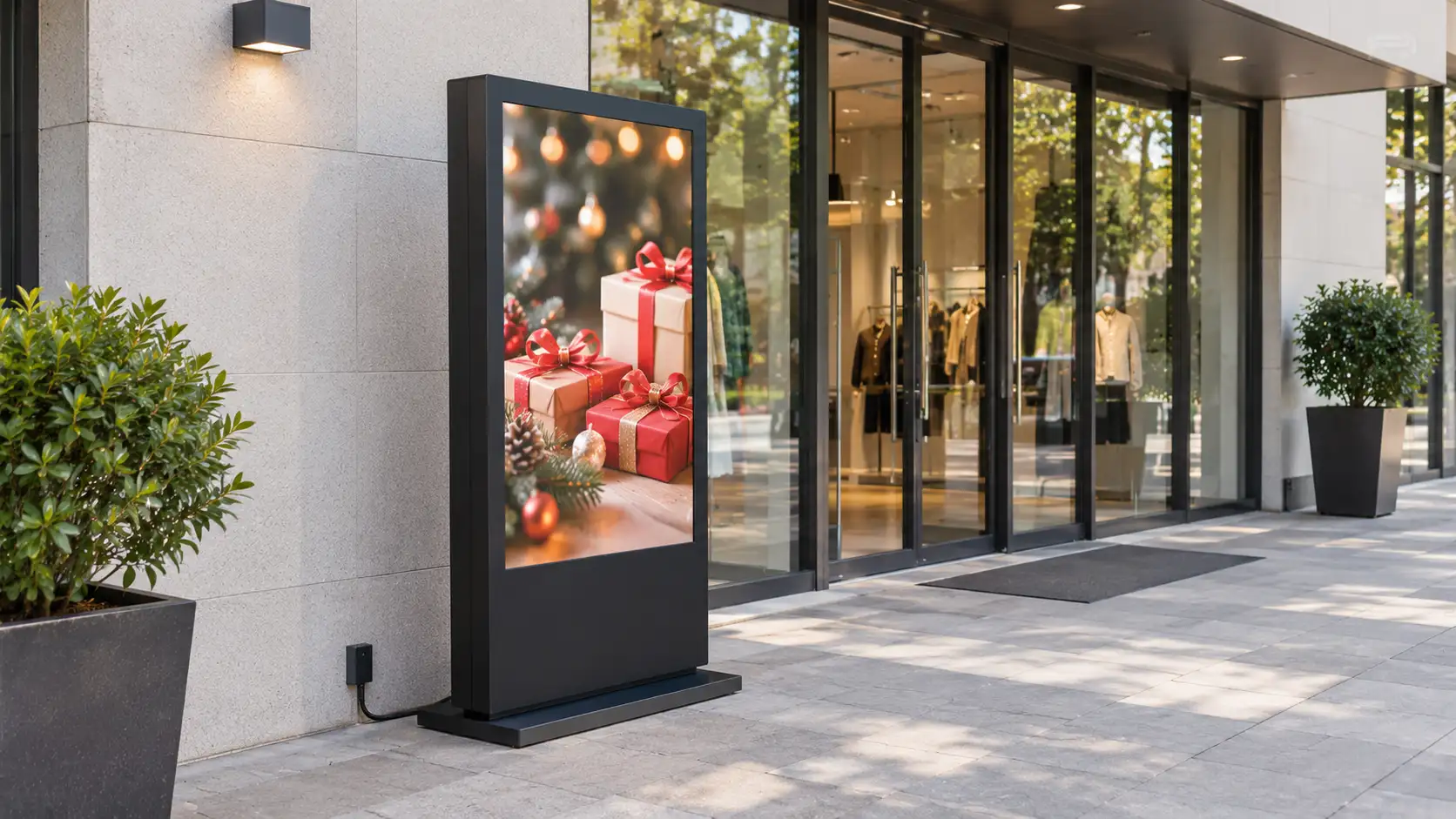
Outdoor vertical digital signage display is a floor-standing LCD advertising solution designed for outdoor public spaces, combining high brightness, IP65 protection, intelligent temperature control, remote content publishing, and durable anti-corrosion housing for 24/7 outdoor advertising.
Interactive flat panel display is a smart touch screen solution for classrooms, meeting rooms, training centers, and collaborative workspaces, combining digital whiteboard, wireless screen sharing, annotation, video conferencing, and multi-touch interaction in one device.
Tell us your application, screen size, installation type and touch requirements. RSXD will recommend suitable digital signage, touch displays or video walls with factory pricing and OEM support.