


11/ November
How to Choose the Right Portable Smart Display for Business Use
Choose a portable smart display around the work it will do. Start with the content, the people using it and the places it needs to reach. Then match the screen size, touch controls, applications and power arrangement to that routine. A showroom presentation, a staff training session and a customer browsing a catalog all place different demands on the same screen. Getting those details right makes the buying decision much clearer.
Start with the task and the location
Picture an ordinary working day. Will employees move the display from a reception area to a meeting space, or keep it beside one product collection? Will a salesperson guide each presentation, or will customers browse independently? Write down the main task first and add occasional uses afterward. That keeps the selection focused on the work the screen must handle every day.
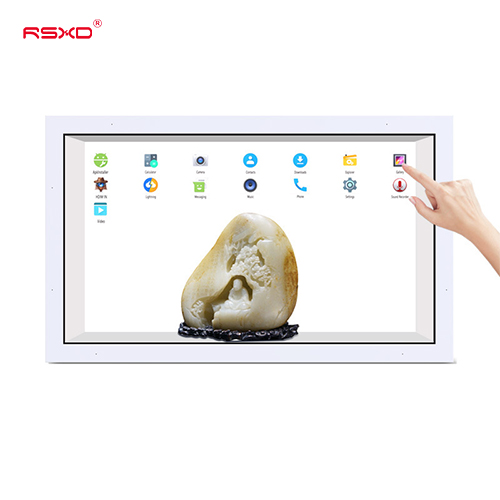
Our portable smart display combines Android operation, touch control, wireless content sharing and a movable design. For business use, think about where each of those features belongs in your routine. A screen shared between a showroom and a training area needs a clear storage and charging location as well as a convenient route between the two spaces.
Match screen size and controls to the user
Check the actual viewing position
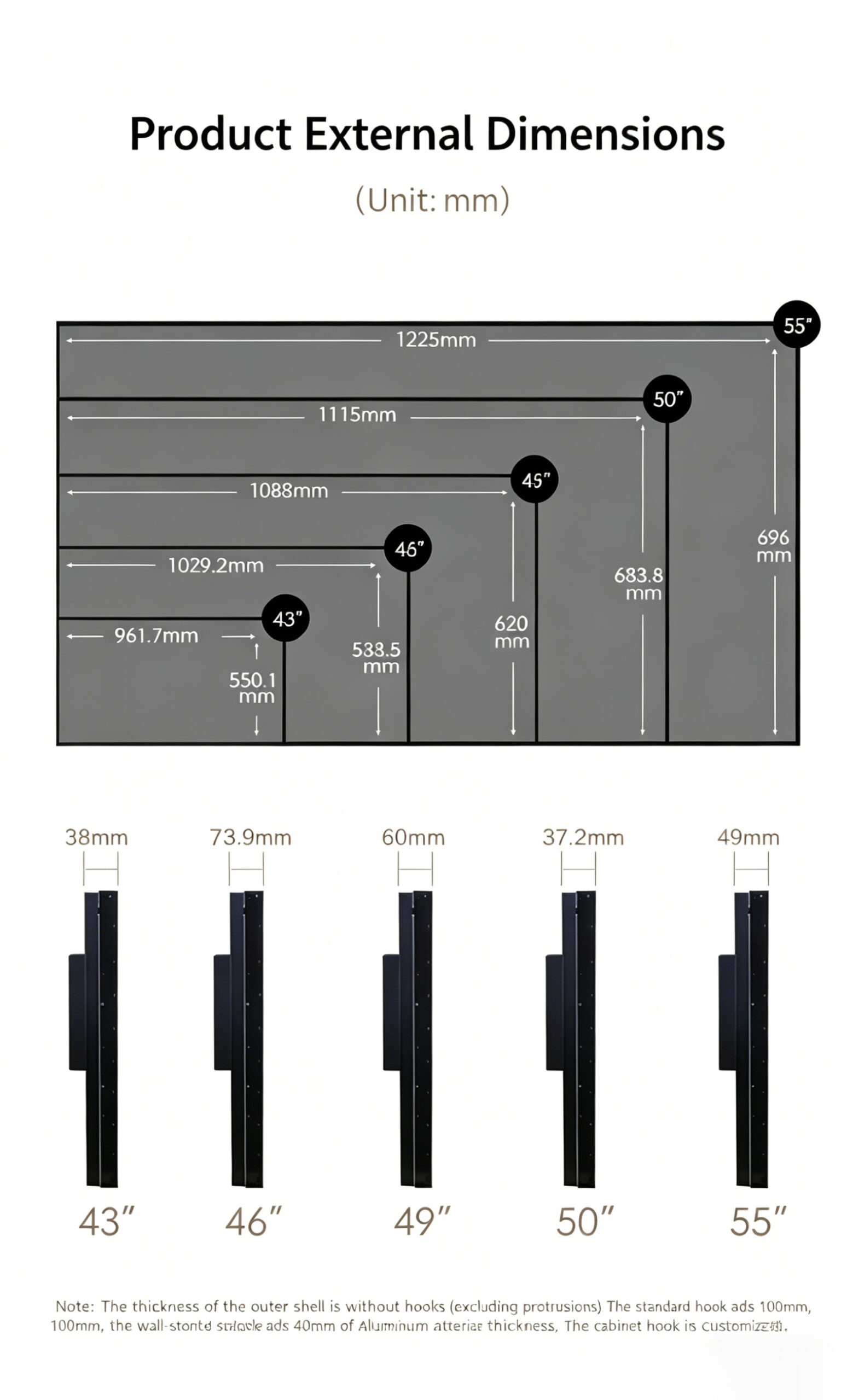
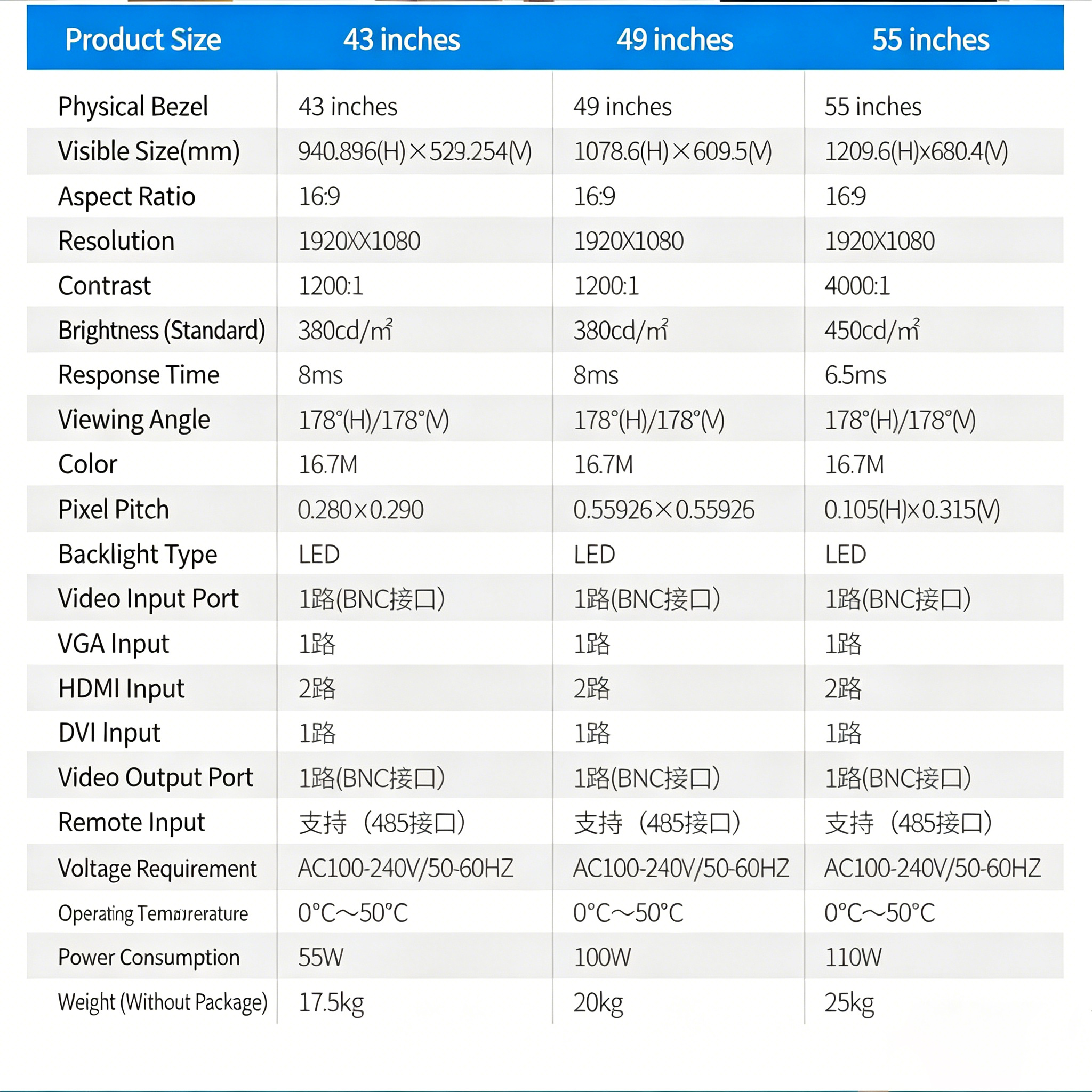
RSXD offers screen size options of 21.5, 23.8, 27 and 32 inches for this portable display. Bring a representative catalog, slide deck or form into the size discussion. Look at the smallest text from the place where a visitor normally stands or a colleague usually sits. Check the screen with nearby lighting switched on, especially when it will sit beside a window or under bright showroom lights.
Try the controls people will use
Touch control suits direct browsing and staff-led demonstrations, while a remote-control option gives you another way to operate the display. Try the actual buttons, menus and input fields your users will encounter. Check reach, screen angle and text entry together. If staff need to change content while speaking to a customer, include that action in the demonstration rather than testing only a video that plays by itself.
Make sure the applications fit the work
The display uses Android 12.0 with an eight-core processor. Begin software planning with a short list of essential applications and browser tasks. Include the account type, sign-in process, file formats and any equipment that must connect. An operating system name alone cannot settle application fit, so use the proposed configuration to open the same files and complete the same actions your team performs at work.
Google Play application availability can vary with location, screen size and Android version. Include these conditions when reviewing the application list, particularly for deployments in several markets. Try a complete task, such as opening a catalog, selecting an item and returning to the starting screen. This gives purchasing and IT a shared basis for accepting the configuration before an order moves ahead.
Decide whether the display should move
A portable signage display makes sense when the content needs to follow the conversation. Staff can bring the screen beside a product, use it for a small group presentation, then return it to its usual position. If the screen will stay at one entrance showing the same message, consider a fixed installation instead. If it only needs to display a connected computer, a conventional monitor may meet the requirement.
For a room used mainly for group discussion, compare that routine with an interactive flat panel display. Consider how many people need to see the material, whether the furniture moves and how often the screen changes location. Choose the format that suits the room. A device that looks convenient in a photograph may feel quite different beside your own desks, shelves and walkways.
Plan movement and power as part of the setup
Walk the route between locations
The portable display has five hidden silent wheels and an adjustable screen angle. Plan the route from its storage point to each working position, including doorways, turns and the space around furniture. At the destination, check the angle for both the presenter and the audience. Keep the route practical enough that moving the screen remains a normal part of the job rather than a task staff avoid.
Build charging into the daily routine
A built-in 15000mAh battery allows the display to be used away from a fixed outlet. Battery life is about 8 to 10 hours, depending on usage. Plan around your actual sessions and check running time with the intended brightness and applications. For shared equipment, assign a charging location and a person responsible for returning it there. Include a charging opportunity between longer presentations where the schedule allows.
Connect the display to your business workflow
Use the real source devices
Wireless projection supports content sharing from phones, tablets and laptops. Test the devices your employees already carry, using the network available at the intended location. Open a presentation, play a video and switch between presenters if that is part of the job. When a wired connection or a particular sharing protocol is essential, put it in the configuration request so the connection method can be agreed before purchase.
Agree on accounts and shared use
The built-in Ultra HD camera can be used for online video communication. For meetings, check the camera, application and chosen audio equipment together. For customer-facing use, agree on which accounts remain signed in and how staff remove temporary files. Put responsibility for updates, content changes and account access in writing. A shared screen works best when the next user knows how to start and how to leave it ready.
Confirm the configuration before ordering
At RSXD, we record customization requirements in a needs confirmation form and support sample delivery and prototype testing. Use that stage to bring together size, functions, system, appearance and the intended setting. Ask for an agreed configuration and record what the sample must demonstrate. Keep delivery arrangements and the scope of any supporting documents specific to your order.
Our quality process includes equipment batch, component and inspection traceability, with individual machine inspection and a factory inspection report. For your acceptance record, keep the selected configuration, test content and outstanding questions together. A useful final check covers readability, touch operation, application access, movement, power and content sharing. That makes it easier to compare the delivered unit with the business requirement you started with.
Use a sample to answer the remaining questions
Prepare a short acceptance sheet before the sample arrives. For a showroom, include opening the catalog, moving between product areas and handing control to another employee. For an office, include joining a meeting, sharing the expected file types and returning the screen to charge. Let the people who will use it carry out those actions, including someone who did not help prepare the demonstration.
Keep essential requirements separate from preferences. If a particular application is central to the job, make completing that application task an acceptance item. If a color or accessory is optional, record it as a choice. This makes the purchasing conversation more useful and gives everyone a clearer understanding of what must be included in the order.
FAQ
Which screen size should a business choose
Start with the content and normal viewing position. Compare the available sizes using your smallest text and the space around the display, then check touch access at the intended angle.
Can one portable display serve several departments
Plan a shared schedule, a storage and charging point, and a simple handover routine. Check that each department can open its content and use the agreed connection method.
How should a company plan support after delivery
Assign an owner for routine content changes and give IT responsibility for application and account settings. Keep the order configuration, acceptance record and support contact together. When asking for help, describe the device, application, connection method and steps that reproduce the issue. Agree on support arrangements with the supplier during purchasing.
What should be tested before placing an order
Use your own applications, files and source devices. Check viewing, touch operation, movement, connection and running time under the workload planned for the business.
Discuss your business display requirements
Send us your use locations, preferred size, applications and connection requirements. Discuss a portable display configuration with RSXD so the specification and sample checks reflect how your team will actually use it.
Learn More