How Portable Smart Displays Improve Meetings and Workplace Collaboration
How Portable Smart Displays Improve Meetings and Workplace Collaboration
author
12th November 2026
A portable smart display brings shared content to the place where a team is working. Move it beside a project table, use it for a training session or position it for a video conversation. That flexibility gives teams more ways to present and discuss their work without making every session depend on one room. The most useful setup matches the display to the meeting format, the content and the people taking part.
Bring a shared agenda to informal meetings
A short discussion often needs only one document, a project timeline or a list of decisions. Put that material on a screen the group can see, then keep the current item visible as the conversation moves forward. A portable display lets you arrange that shared reference around the working area, whether people are seated at a table or gathered beside a product demonstration.
Our portable smart display has five hidden silent wheels and an adjustable screen angle. Move it into the meeting area and set the viewing position for the group. Before starting, open the agenda and check the smallest text from each normal seat. Assign one person to control the material so participants can stay with the same version throughout the discussion.
Make hybrid meetings easier to arrange
Place the camera around the discussion
The built-in Ultra HD camera supports online video communication. In a small project meeting, position the screen so the camera faces the people who will speak. Check the remote view before others join, including what appears behind the team. When the room layout changes, adjust the display position and angle to suit that session rather than relying on the arrangement from the previous meeting.
Share the material from familiar devices
Wireless projection supports sharing from phones, tablets and laptops. A presenter can prepare material on their usual device and use the display as the group viewing surface. Try the complete meeting routine with the chosen application and audio equipment, including joining the call, showing a document and switching to another presenter. Match the sharing method to your workplace network and the devices participants actually use.
Choose the right surface for whiteboarding
Some discussions need a shared presentation; others need people to write, sketch and annotate together. Decide which activity matters before choosing the display. Touch control gives users a way to operate the portable screen, while live writing and annotation depend on the chosen model and software. Include the actual activity in your demonstration, such as marking a document and reopening the saved result.
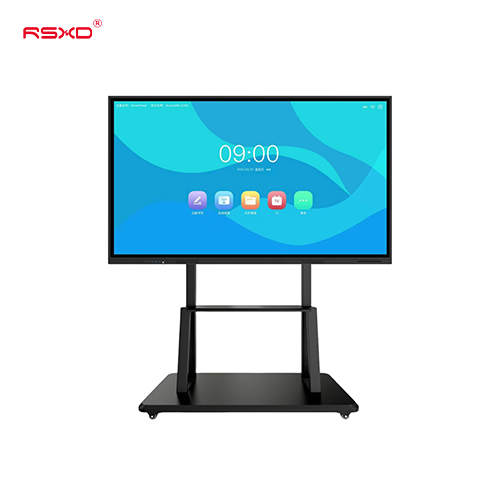
For a space centered on shared writing, compare the requirements with an interactive flat panel display. Consider the working area, the number of people who need access and whether the screen moves between rooms. A small project group reviewing slides has a different setup from a workshop built around writing on a shared surface. Keep those two uses clear when discussing the configuration.
Take training into the working environment
Present beside the task being taught
Training does not always belong in a classroom. A product explanation may make more sense beside the display area, while a process discussion may happen around a worktable. Bring the presentation into that setting and keep the relevant image or instruction visible. The adjustable screen angle allows the display position to be adapted for a seated discussion or a standing explanation.
Prepare a simple workshop sequence
Use a short sequence that the facilitator can control comfortably. Open the topic, show the example, pause for discussion and return to the agreed action. Prepare the files before moving the screen and keep a fallback copy available. For a workshop that uses several locations, walk the route in advance and check the viewing position at each stop so the content remains part of the activity.
Keep cross team project reviews focused
When sales, design and operations review the same project, start with one shared file and a clear question. Is the group choosing a layout, checking a product explanation or agreeing on the next step? Put the relevant material on the screen and keep supporting files ready. A movable display lets the review happen near the team or product involved, provided the space and connection are suitable.
The portable screen runs Android 12.0 with an eight-core processor. Plan the applications around the files the team already uses and check the whole presentation sequence on the proposed configuration. Application availability can vary with location, screen size and Android version. Agree on one presenter, one file location and a way to record decisions, so moving the display does not introduce uncertainty about which document the group is reviewing.
Keep the decision visible during the review
For example, a team comparing two presentation layouts can show each version in turn, keep the selection criteria visible and write the agreed change in its project file. The display provides a common place to look; the meeting owner still needs to guide the decision. At the end, reopen the chosen version and check that everyone knows which file should be used for the next stage.
Use temporary spaces for visitors and small groups
In a showroom or reception area, bring the material to the conversation. A portable display can show product catalogs, promotional videos, brand stories and customer presentations while staff guide the discussion. Prepare the content for that visitor and leave only the relevant files open. The same approach can be used for an internal briefing when a team needs a screen near a temporary working area.
Battery operation helps with placement away from a fixed outlet. The display has a 15000mAh battery with about 8 to 10 hours of use, depending on usage. Plan the meeting schedule around the actual application load and brightness, and check charge before moving it. For a day with several sessions, identify when the display returns to a charging point and who is responsible for that handover.
Make short sessions easy for the next presenter
Keep a simple opening screen or folder for the meeting materials your team uses regularly. Before a visitor arrives, close internal documents and check that the intended presentation opens correctly. When the next session involves another department, hand over the screen with a brief explanation of the content source and connection method. This is especially useful where several small groups use the same space during the day.
Leave the display ready for the next meeting
Finish by saving the agreed material to the team location, signing out of temporary accounts and clearing visitor files. Return the display to its storage or charging point and note any connection issue that the next presenter should know about. Keep access to content and account settings consistent with your IT policy, especially when several departments share the same device.
Before introducing the display across the workplace, run one recurring meeting from start to finish. Check seating, viewing, touch operation, wireless sharing, camera, audio and battery use in that room. Record the chosen configuration and the tasks that need a different arrangement. Use the findings to create a short setup guide that a colleague can follow without attending the original demonstration.
FAQ
Can a portable display replace every meeting room screen
Choose it for meetings where mobility and flexible placement matter. For a room built around a large shared writing area, compare the requirements with an interactive panel before deciding.
What should a hybrid meeting test include
Use the real meeting application, source device, camera and audio equipment. Join a call, share a file and check both the in-room view and the remote participant experience.
How can a team judge whether the setup helps
Use the same recurring meeting for a short pilot. Record how the team prepares, connects, follows the material and hands over the display. Ask participants what was easy to see and what interrupted the discussion. Those observations give you a practical basis for adjusting the arrangement before introducing it more widely.
How should shared equipment be handed over
Save the meeting files, remove temporary accounts and return the display to its agreed charging location. Leave a brief note about any application or connection issue.
Plan your workplace display setup
Tell us about your rooms, meeting applications and presentation routine. Discuss your meeting display requirements with RSXD and bring those details into the configuration discussion, including the connection and power arrangements your team needs.配图建议
We support multiple installation methods, including wall-mounted, floor-standing, vehicle-mounted, and embedded. Different installation methods correspond to different scenarios:
* Wall-mounted: Suitable for building elevators and shopping mall walls;
* Floor-standing: Suitable for store lobbies and showroom entrances;
* Vehicle-mounted: Suitable for public transportation scenarios such as buses and subways;
* Embedded: Can be integrated into self-service terminals, smart cabinets, and other devices.
Currently, we offer two mainstream touch methods:
* Capacitive touch: Supports multi-touch, highly sensitive operation, suitable for lightweight interactive scenarios (such as information kiosks);
* Infrared touch: Strong anti-interference, waterproof and scratch-resistant, more durable, suitable for high-frequency touch and complex environments (such as self-service terminals in public places).
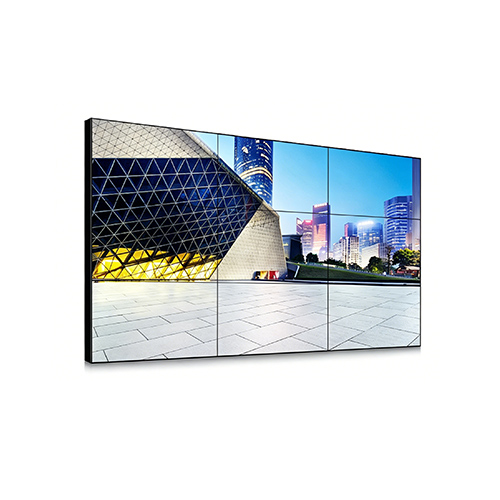
The physical gap of a standard video wall is 0.88mm-3.5mm (slightly different for different models); currently, we offer micro-gap video walls (gap ≤ 0.88mm), visually approaching a "seamless" effect, suitable for monitoring centers, large exhibition hall screens, and other scenarios requiring high display continuity.
The vehicle-mounted advertising machine adopts a shock-resistant and reinforced design, passing vehicle environment vibration tests; it also supports a wide operating temperature range of -20℃ to 60℃, adapting to extreme environments such as high temperatures inside vehicles in summer and low temperatures in winter, and can operate stably in complex road conditions such as buses and trucks.
It supports a variety of external devices, including printers, barcode scanners, ID card readers, cameras, etc.; the equipment has reserved interfaces such as USB and RS232, which can be connected to external devices according to actual needs, suitable for interactive scenarios such as self-service checkout and government affairs inquiries.
Split-screen display is supported. The number of split screens varies depending on the model: the basic model supports 2-4 split screens (such as main video + image + text), while the high-end model supports more than 16 split screens. Customizable split-screen ratios are also supported to meet the needs of displaying multiple contents simultaneously.
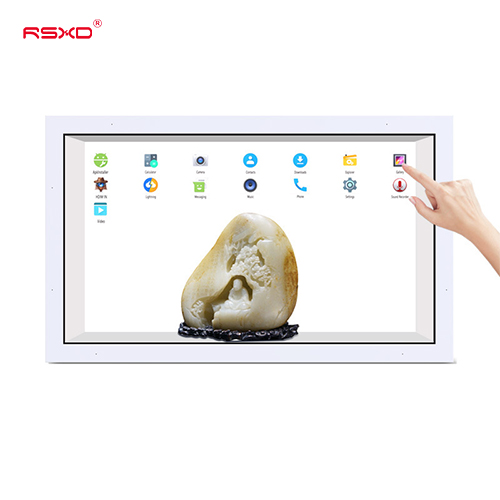
The transparent LCD display combines physical product exhibition with digital content, allowing customers to view the real item inside the cabinet while reading product information, brand stories, technical details, or promotional videos on the transparent screen.
This transparent display creates a layered visual effect. Products remain visible behind the screen, while images, text, videos, and animation can be shown on the front surface. This makes the display more attractive for high-value products, exhibition items, luxury retail, cultural collections, and brand presentation.
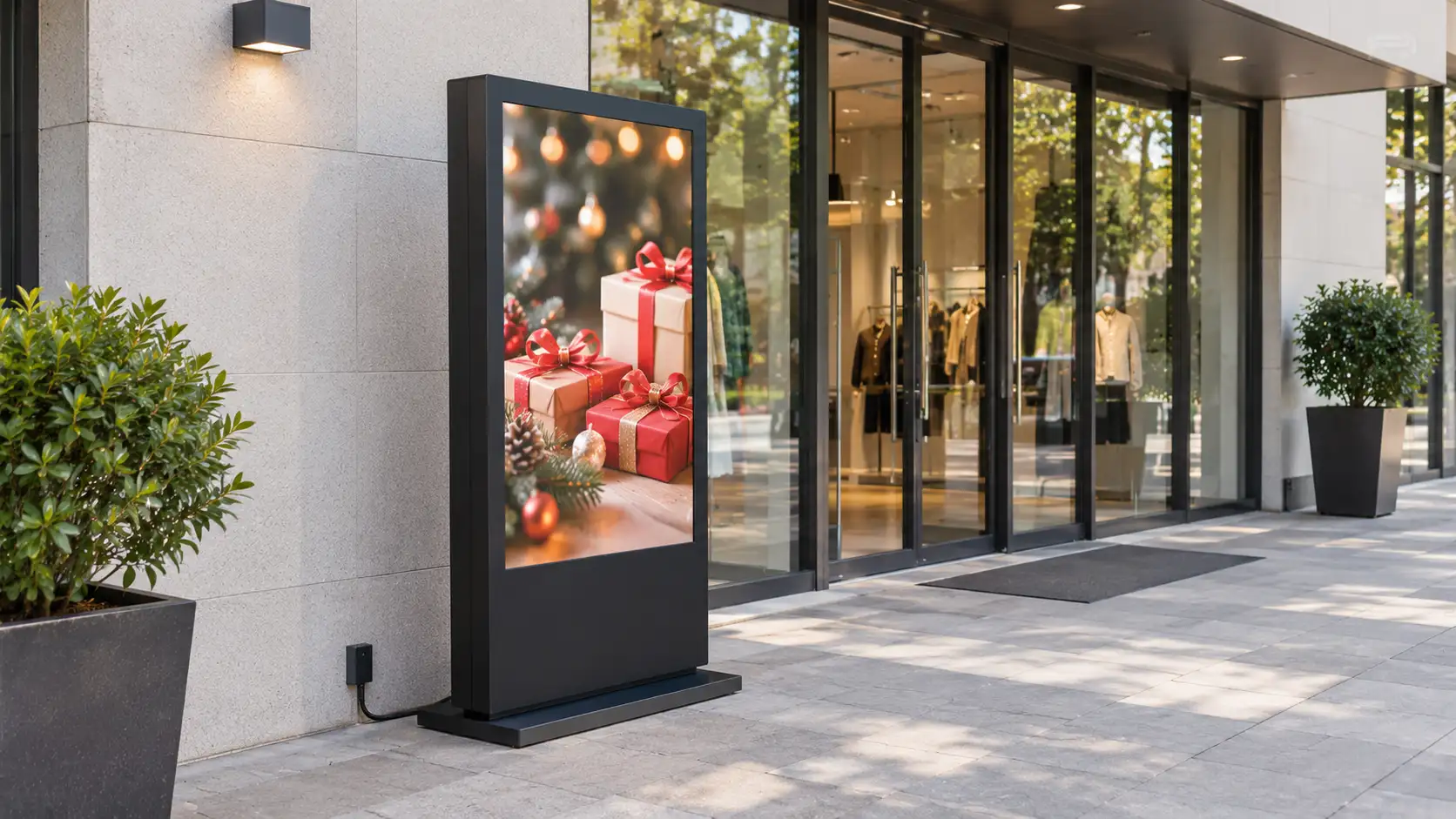
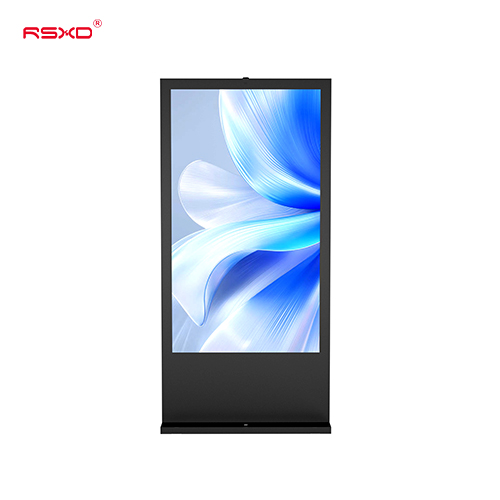
Outdoor vertical digital signage display is a floor-standing LCD advertising solution designed for outdoor public spaces, combining high brightness, IP65 protection, intelligent temperature control, remote content publishing, and durable anti-corrosion housing for 24/7 outdoor advertising.
Interactive flat panel display is a smart touch screen solution for classrooms, meeting rooms, training centers, and collaborative workspaces, combining digital whiteboard, wireless screen sharing, annotation, video conferencing, and multi-touch interaction in one device.
Tell us your application, screen size, installation type and touch requirements. RSXD will recommend suitable digital signage, touch displays or video walls with factory pricing and OEM support.