 author
A meeting can lose ten minutes while people search for cables. A lesson can lose half the room while a teacher moves between a laptop, projector, and whiteboard. An interactive flat panel display puts presenting, writing, sharing, and saving on one large touch surface. In daily use, that changes who can participate and how quickly work moves.
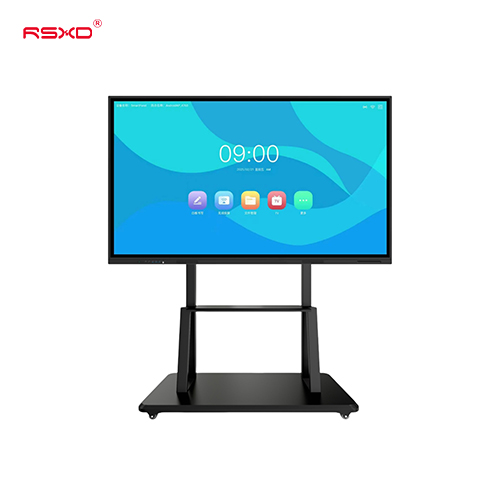
An interactive flat panel combines a high resolution screen, touch input, writing tools, wireless screen sharing, and computing support. The useful difference is that these functions work together. You spend less time switching equipment and more time on the lesson or decision in front of you.
A standard display shows content. An interactive panel lets you work on it. You can mark a drawing, move an object, compare ideas, and save the annotated result. A multi-touch display also allows several users to write or move content at once.
Available RSXD configurations include 4K resolution, 20 or 32 touch points, touch accuracy around ±2 mm, and response as low as 3 ms. Specifications vary by model. Still, touch speed matters because writing delay becomes obvious during a full lesson or detailed sales review.
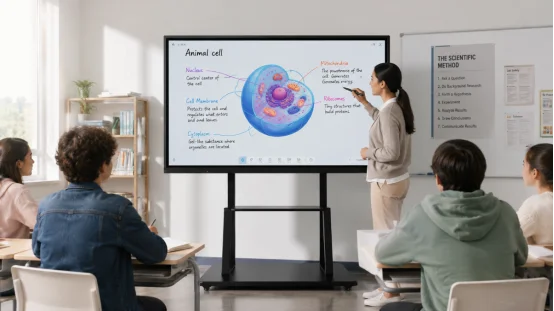
An interactive display for education has to handle repeated use by different teachers, age groups, and classes. Picture quality matters, but classroom value often comes from readable content, quick writing, simple controls, and tools that fit the teaching routine.
An interactive whiteboard lets students solve a problem on screen, label a diagram, or compare answers. The teacher can annotate courseware, project student work, record a lesson, and save board notes for review.
A 4K interactive display helps with fine text, maps, formulas, and detailed images. A 178 degree viewing angle helps students near the sides. Teaching models may also include an anti-glare surface and automatic brightness adjustment for rooms with strong overhead lighting.
Check whether existing courseware opens correctly and whether the panel connects easily to classroom devices. Ask how remote teaching, classroom recording, synchronized materials, updates, and remote device management work.
Installation height, wall strength, sound coverage, and port access also matter. These details feel ordinary. They are where many rollouts stumble, especially when a school is fitting dozens of rooms.
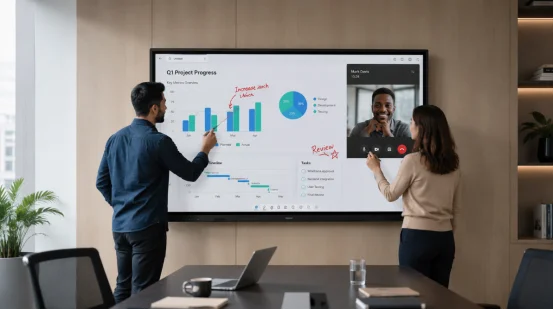
An interactive display for business earns its place when it shortens meetings and leaves a clear record. It should bring in remote participants, share content, edit ideas together, and send final notes without a complicated handoff.
A conference room display can support live annotation, file sharing, video meetings, and input from several devices. Your team can review a proposal, mark changes, and save the final version before anyone leaves. That reduces the familiar problem where three people remember three different decisions.
For client presentations, the same panel can move from slides to drawings, videos, dashboards, or a live document. Good commercial display solutions also let the screen serve training, reception, and internal communication when no formal meeting is running.
A projector room may need a separate screen, whiteboard, speakers, camera, cables, and control unit. An interactive panel can combine much of that work. You still need to check camera placement, audio pickup, network quality, and software compatibility, but daily operation becomes simpler.
Fewer separate devices also mean fewer remotes, adapters, and connection points to troubleshoot. Anyone who has found the right adapter five minutes after a meeting started knows the cost of that small problem.
Price and screen size are easy to compare. Long-term value depends on whether the panel fits the room, works with your systems, and stays reliable after months of daily use. Ask for model-specific data because performance can vary within a product family.
Common classroom and meeting sizes run from 55 to 100 inches. Match the panel to viewing distance and content detail. Review resolution, brightness, contrast, anti-glare treatment, viewing angle, touch points, writing accuracy, response time, ports, and network options.
Then test real work. Open a large presentation. Write near the screen edge. Connect two common devices. Share a video and save annotations. A polished demo file can hide weak compatibility, so bring the files your staff uses every week.
Commercial panels may run for long hours. Ask about aging tests, power stability, component traceability, and factory inspection. RSXD documentation states that finished units undergo at least 48 hours of continuous high temperature aging, followed by checks for brightness, color consistency, touch accuracy, and power cycling.
Ask whether the supplier can adapt hardware, software, interfaces, and device management to your setup. Warranty length is only one line on the order. Response time, remote diagnosis, spare parts, training, and on-site service decide how disruptive a fault becomes.
These checks reveal whether you are buying a screen or a system that can keep working in the room you actually have.
A capable commercial display supplier should connect product design, production, software setup, testing, delivery, installation, and support. This matters when your project has unusual room sizes, required interfaces, existing management software, or a phased rollout across sites.
RSXD develops interactive teaching and conference panels within a wider commercial display range. Its documented capabilities include hardware and software customization, system adaptation, remote management, installation, user training, and ongoing maintenance. Production covers assembly, testing, and aging, while quality controls follow an ISO 9001 process and products carry certifications such as CE, FCC, and RoHS. The practical benefit is accountability. One supplier can address the screen, touch system, software fit, deployment, and later service instead of passing each issue to a different contractor.
Q1: What is the main difference between an interactive flat panel and a regular TV?
A: A regular TV mainly displays content. An interactive panel adds touch, writing, annotation, screen sharing, file handling, and collaboration tools.
Q2: Is an interactive flat panel suitable for both classrooms and meeting rooms?
A: Yes, but choose the right model. Education versions may focus on anti-glare viewing, teaching software, recording, and courseware. Business versions may place more weight on video meetings, device sharing, and collaborative annotation.
Q3: What screen size should you choose?
A: Many classroom and conference models range from 55 to 100 inches. Base the choice on room depth, seating position, wall space, and the detail shown on screen.
Q4: Can several people write on the panel at once?
A: Models with 20 or 32 touch points can support multi-user writing and object movement. Check the exact touch specification and test the writing software before ordering.
Q5: What should you test before buying?
A: Test your files, devices, network, writing tasks, video calls, and screen sharing. Confirm installation, training, warranty response, remote support, and replacement parts.