 author
LCD touchscreen all-in-one PCs are important intelligent devices in modern offices, education, and commerce, widely used in various locations due to their integration of display, touch, and computing functions. However, with frequent daily use, the maintenance and upkeep of LCD touchscreen all-in-one PCs have become crucial for extending device lifespan and ensuring stable operation. This article will provide an in-depth analysis of the daily maintenance of LCD touchscreen all-in-one PCs to help users better understand and implement relevant maintenance measures.
Cleaning and Maintenance of LCD Touchscreen All-in-One PCs
The screen of an LCD touchscreen all-in-one PC is one of the most vulnerable components, so keeping it clean is the most basic maintenance task. During prolonged use, the screen surface inevitably accumulates dust, fingerprints, and other stains. To avoid scratching the screen or affecting display quality, it is recommended to use a dedicated lint-free cloth or a slightly damp soft cloth for cleaning. Do not use cleaning agents containing chemical ingredients on the screen of an LCD touchscreen all-in-one PC, as these may damage the screen surface coating, leading to unresponsive touch.
In addition, the casing of the LCD touchscreen all-in-one PC also needs to be wiped regularly to keep the device surface clean. This not only improves the device’s appearance but also prevents external contaminants from entering the device and affecting heat dissipation and stability.
Cooling and Ventilation of LCD Touchscreen All-in-One PCs
LCD touchscreen all-in-one PCs typically integrate a display screen and computing hardware. Prolonged high-intensity operation can lead to increased internal temperatures. Therefore, good heat dissipation performance is crucial for the operation of LCD touchscreen all-in-one PCs. The cooling system of an LCD touchscreen all-in-one PC usually consists of fans, heat sinks, etc. Keeping these components functioning properly can effectively reduce the device temperature and extend its lifespan.
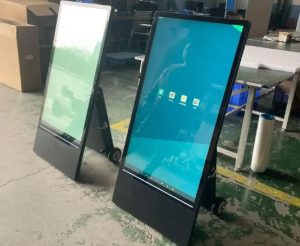
To ensure the cooling effect of the LCD touchscreen all-in-one PC, users should regularly check the ventilation holes on the back of the device to ensure that the vents are unobstructed. If the ventilation holes are blocked by dust or other debris, they can be gently cleaned with a hair dryer or a soft brush. When using the LCD touchscreen all-in-one PC in high-temperature environments, it is recommended to monitor the device temperature regularly to prevent overheating and hardware damage.
Software Updates and System Maintenance of LCD Touchscreen All-in-One PCs
LCD touchscreen all-in-one PCs are not just hardware devices; their built-in software systems also require regular maintenance. Timely software updates can fix potential vulnerabilities, improve device functionality, and ensure more stable and efficient operation. Therefore, users should regularly check the operating system, drivers, and applications of their LCD touchscreen all-in-one printers to ensure all software is up-to-date.
Furthermore, the operating system of the LCD touchscreen all-in-one printer should be regularly optimized, cleaning up useless files and cache to free up hard drive space. This not only improves the device’s operating speed but also prevents performance degradation caused by excessive data accumulation over time.
Hardware Inspection and Troubleshooting for LCD Touchscreen All-in-One Printers
Besides software and external cleaning, hardware inspection is also a crucial part of daily maintenance for LCD touchscreen all-in-one printers. Regularly check the power adapter, touchscreen, and connection interfaces to ensure they are not loose or have poor contact. If any abnormalities are found, first check the power supply, data cables, and interfaces for proper functioning. Touchscreen malfunctions may be caused by hardware damage, connection problems, or improper system configuration, requiring a comprehensive inspection and troubleshooting.
Additionally, the battery (if available) of the LCD touchscreen all-in-one printer also needs to be checked regularly. After prolonged use, battery performance may decline, affecting the device’s portability. In this case, consider replacing the battery to ensure the device maintains good mobility and operational performance.
Security Protection for LCD Touchscreen All-in-One PCs
During long-term operation, external safety factors must be considered for LCD touchscreen all-in-one PCs. The placement of the device in its physical environment and changes in ambient temperature and humidity can affect its performance. For example, high humidity can cause short circuits or corrosion, and strong light can cause screen color distortion. To avoid these potential risks, it is recommended to place the LCD touchscreen all-in-one PC in a well-ventilated and dry environment, and avoid direct sunlight on the screen.
Furthermore, when connecting the LCD touchscreen all-in-one PC to the internet, users should pay attention to network security. Regularly update firewalls and security software to prevent virus and malware intrusion and ensure a secure operating environment for the device.
Conclusion
As a high-tech intelligent device, the LCD touchscreen all-in-one PC boasts numerous convenient functions and is widely used in various fields. To ensure its long-term stable operation and high performance, routine maintenance is crucial. By regularly cleaning, checking heat dissipation, updating software, troubleshooting hardware faults, and implementing security measures, users can effectively improve the user experience of the LCD touchscreen all-in-one PC and extend its lifespan. We hope this maintenance guide will be helpful to users of LCD touchscreen all-in-one PCs, keeping their devices in optimal condition.