 author
The ports on an interactive flat panel shape each lesson, meeting, and training session. Daily use often comes down to a simple issue: Can you connect your device and start work in a minute?
Strong interactive flat panel connectivity supports laptops, cameras, storage drives, networks, and touch control. A well-planned smart interactive board also handles changes in room layout and user devices.
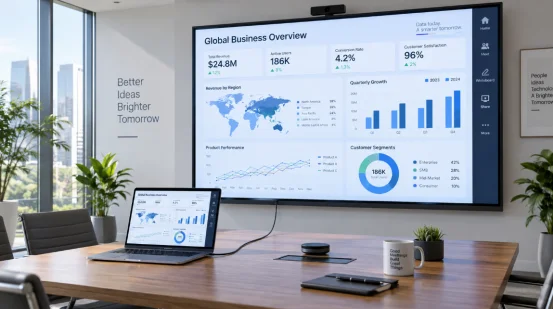
Start with the devices people bring into the room. A teacher may carry a slim laptop with USB-C. A visiting speaker may arrive with HDMI. A meeting host may need the panel to control a connected computer through touch. Your connection panel should cover all three cases.
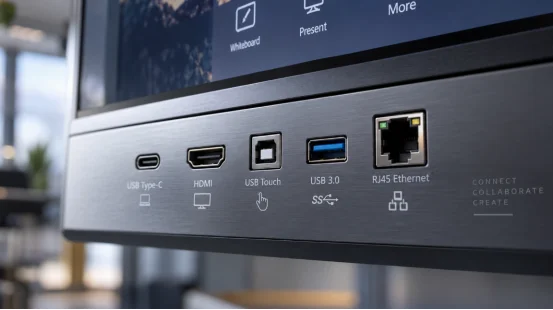
A USB-C interactive display can receive video, audio, touch data, and laptop charging through one cable when the panel, computer, and cable support those functions. This setup suits shared rooms because users connect quickly and leave fewer cables on the table.
Check whether the port supports display input, touch return, and power delivery, then test it with the laptop models used on site.
An HDMI connection accepts signals from laptops, document cameras, media players, and room computers. Multiple inputs support a fixed computer and a guest connection. For 4K content, confirm the resolution and refresh rate across the source, cable, and panel.
HDMI carries picture and sound. Touch control usually needs a separate upstream USB link. Label paired HDMI and touch ports during installation, especially when cables run through a wall box or lectern.
A USB touch cable sends finger or stylus input from the panel back to the computer. You can open files, move objects, annotate a presentation, and control software from the large screen.
Test touch return on every planned operating system and input pair. RSXD also calls for touch sensitivity, multi-touch accuracy, interface compatibility, and signal transmission stability checks during commissioning.
Modern rooms use webcams, microphones, document cameras, storage drives, keyboards, and network services. Port count matters, but port location matters too. Front ports serve temporary devices. Rear ports suit permanent equipment and keep cables away from the writing area.
USB 3.0 ports handle large presentation files, high-resolution cameras, and other peripherals. Two accessible ports can serve a webcam plus a storage drive, or a document camera plus a keyboard receiver. Confirm which ports connect to the built-in system, the OPS computer, or an external laptop.
Choose side or front ports for frequent plug-in use. Rear connectors suit fixed cameras but can frustrate a teacher carrying a flash drive between rooms. Little details become big details on a busy Monday morning.
RJ45 Ethernet gives the panel a wired path for video conferencing, cloud files, remote support, and updates. A Gigabit port helps in rooms with crowded wireless networks. Ask IT staff to provide the correct network segment and a nearby wall outlet.
Wi-Fi 6 supports internet access and wireless screen sharing from laptops, tablets, and phones. Presenters can move around the room or invite participants to share work. Connection quality depends on access-point placement, channel load, and security settings.
Run a casting test from the farthest seat and during normal building traffic. For managed networks, confirm authentication rules, device discovery, guest access, and firmware update procedures before rollout.
Bluetooth 5.0 can connect keyboards, mice, speakers, and other short-range accessories. It keeps occasional-use controls off the USB ports. For audio equipment, check latency and reconnection behavior, since a cable may suit rooms used for live speech or recorded lessons.
An OPS slot accepts a compact computer module inside the panel. It gives the display a dedicated desktop environment and reduces the need for a separate tower, external power adapter, and long video cable. The choice depends on your software, maintenance plan, and expected service life.
An OPS computer suits rooms that run desktop teaching software, office files, specialist applications, or managed user accounts every day. Users switch between the panel system and the OPS source from the input menu. Touch, display, power, and internal data connections stay within the unit.
Check processor, memory, storage, network access, and operating-system support against the actual workload. Video conferencing may need more memory and processing capacity than whiteboard use. Leave spare capacity for security tools and future software updates.
An empty OPS slot gives you a defined expansion route. You can deploy the display with its built-in system, then add computing capacity when a project adopts new software. Confirm the slot standard, supported module size, cooling requirements, and service access before ordering.
A port list gives you a starting point. A room test shows whether the complete signal path works. Build the test around people, devices, cables, network rules, and daily tasks.
List the fixed and visiting devices for every room type. A classroom may need USB-C, HDMI, a USB touch cable, a document camera, and wireless casting. A boardroom may add a conferencing camera, external audio, and wired networking. A training room may need several guest inputs and quick source switching.
Ask the supplier to demonstrate video, sound, touch return, charging, peripheral recognition, wireless casting, and network access. Test cable lengths used in the finished room. Record the correct input names and port pairs in a short guide beside the panel. This small step saves support calls after staff changes or room reconfiguration.
The right specification comes from the room workflow and the devices already in use. RSXD configures interactive panels with options such as three HDMI inputs, two USB 3.0 ports, RJ45 Ethernet, Type-C, Wi-Fi 6, Bluetooth 5.0, wireless projection, and desktop-system integration. Interface quantities can also be adjusted for a project.
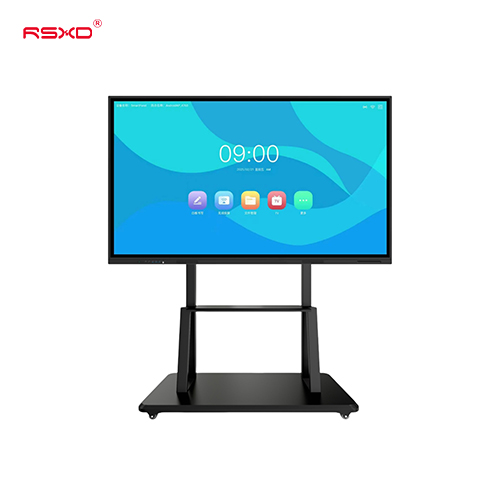
That flexibility has practical value when a campus mixes fixed computers with guest laptops, or when a meeting room needs cameras and touch return on the same panel. RSXD tests interface compatibility and signal stability during commissioning, then subjects finished equipment to at least 48 hours of continuous high-temperature aging plus touch, display, and power-cycle checks. Buyers can use the interactive flat panel display page as a starting point, then confirm the exact port map, cable routing, system support, and peripheral list for each room.
Q1: Is USB-C Enough for an Interactive Flat Panel Display?
A: It can carry video, audio, touch data, and charging when every device and cable supports those functions. Keep HDMI available for guest and legacy equipment.
Q2: Why Does HDMI Need a USB Touch Cable?
A: HDMI sends picture and sound to the panel. The USB touch cable returns touch input to the computer, allowing you to control laptop content from the screen.
Q3: How Many USB 3.0 Ports Should a Panel Have?
A: Two accessible USB 3.0 ports cover many rooms, such as a camera plus a storage drive. Add ports when the room uses several permanent peripherals.
Q4: Is Wired Networking Useful When the Panel Has Wi-Fi 6?
A: Yes. RJ45 Ethernet provides a stable path for calls, cloud content, updates, and remote support. Wi-Fi 6 serves mobile devices and wireless casting.
Q5: Can You Add an OPS Computer Later?
A: Yes, when the panel includes a compatible OPS slot. Confirm module dimensions, power, cooling, hardware specifications, and operating-system support before purchase.